Post
Movie
You can
share and exchange your movie(s) with Comixware users all over the
world by posting it to Comixware's online Gallery. The Gallery is
a community
service provided by Yi.magination for all Comixware users.
Public
or
Private
Post
Comixware Gallery offers 2 types of posting possibilities: "public"
post and "private" post. A "public" post is a
Gallery movie viewable by all users. This option is designed for users
to showcase their works using Gallery as a public forum. A "private"
post (denoted by a "lock" symbol in Gallery listing)
on the other hand is a Gallery movie accessible only by intended user(s)
who are designated by movie's author. This option is designed for
people to use Gallery as a private channel for exchanging personal
files and/or for conducting work related collaboration. The silver
lining of the two is whether a movie is designated for restrictive
access: it's "private" if it is, and it's "public"
if it is not.
Posting Requirement
For posting
to Gallery, the first thing you need obviously is an Internet connection
to get your stuffs online. The second thing to consider is whether
your post is for "public" or for "private" purpose.
If it is for "public" showcasing, please note that there
is a minimum of 20 scenes plus 20 objects requirement for posting
such movie. That is, your movie should be composed of at least 20
scenes with a minimum of 20 composition objects in them to be eligible
for public post. When your posting movie does not match this requirement,
a warning screen will come up to remind you of such shortfall. However,
if your post is intended for "private" viewing (restrictive
access), then there is NO minimum scene or object requirement for
posting to Gallery. In this case you may post a movie with as many
or as few scenes or objects as you'd like, provided such movie is
designated for restrictive access (i.e., the box says "restrict
access" is checked).
Post Movie Interface
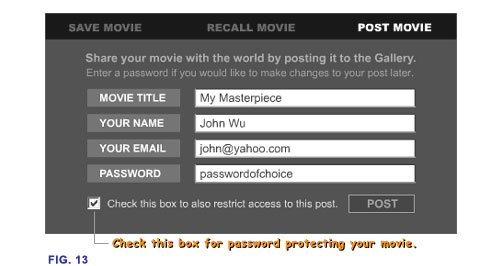
In Save section, click on POST MOVIE button (on horizontal
black strip) to access Post Movie interface. Simply enter the necessary
information for your movie and hit POST button. Your movie is instantaneously
posted to the Gallery and available for other Comixware users to see.
Movie Title
Enter a movie title here for your posting. If your movie bears the
same title as a movie already exists in the Gallery, an alert will
come up to ask you to choose a different title. Simply click "OK"
to go back to previous screen to enter a new title for your movie.
If however the existing title bears the same Administrative ID as
your current posting, a verification screen will come up for you
to confirm your intention for replacing the existing post. Here
the program assumes you are the original author intending to modify
your earlier post. Simply enter the appropriate administrative ID
again to get your post modified.
Note: Do not use "&" character in your movie's
name because it's reserved for programming purpose. Any "&"
character used in your title will be replaced by the "_"
(under score) character.
Your
Name
Enter
an author's name that you wish to be associated with your post.
This could be any nickname of your choice.
Your Email
Enter an email address here to be associated with your post. Your
email serves not only as a way for other users to communicate with
you, but is also used as an administrative ID enabling you to edit
your post later in the Gallery. Please note that under Comixware's
smart aliasing
scheme your email is always save and kept away from preying eyes.
The email address you enter here on Post Movie screen will never
be revealed or exposed to Gallery viewers at any time.
Password
When
you post a movie to the Gallery you have the option to include a
"password" (in the Password field) to be associated with
your posting. The password you choose should be of at least 6 characters
long in any combination of letters and numbers. This password is
to be used for 2 purposes:
Administrative Privilege
Combining
with your e-mail address, the "password" is used as
an administrative ID for your Gallery entry. So that later if
you decide to make changes or remove this movie from the Gallery,
you can use this unique ID (e-mail and password) to obtain the
necessary privilege to do so. If you do not enter a password for
your posting, your movie will not be editable once it's posted
in the Gallery, neither by you nor by anyone else.
To
edit or replace your Gallery movie, simply re-post a new version
of your movie using the same title and movie ID of the existing
post. Once authenticated your old Gallery piece will be replaced
by the new post. As for removing of your Gallery movie, the task
is to be performed from the Gallery section (see Gallery
Management).
Restrictive Access
The
other use of the "password" is to password protect your
Gallery movie. Only users who you give your password to are allowed
to download your movie from the Gallery. This is useful if you
intend to share or exchange your "private" contents
with selected friends or family through Gallery service. When
you want your movie to be "protected", simply check
the box (says restrict access) below the password field before
you "Post" the movie. Once this box is checked, your
posting will show up in the Gallery with a lock
symbol on it. That means your movie is password "protected".
You can use the TELL
button in the next "Congratulation!" screen to give
your password to user(s) who you want them to have access to.
Now your gallery entry will be accessible only by those who you
designate to.
Note:
Password alone doesn't give your friends or family the necessary
administrative privilege to change or remove your movie from the
Gallery. Only someone who gets both e-mail and password verified
is allowed to do so.
Tip:
If you change your mind about your "protected" or "unprotected"
Gallery entry, you can always alter the permission by reposting
the same movie to the Gallery. Just remember, a new post always
replaces an old post entirely including its "accessibility"
setting.
Notify
Friends & Family
Upon
a successful post of your movie, you have the option to notify your
friends and family about your masterpiece by sending them an e-mail
from directly within Comixware. Just click on the "TELL"
button in the "Congratulations!" screen that follows the
post. This will take you to a messaging screen where you can compose
an e-mail and send it to anyone you'd like. Note
that the "Re:" (subject) field is default to your movie
title and the "Sender:" field is default to your e-mail
address. But you can change them to any subject matter or sender address
you prefer. Meaning: you can use this e-mail client any way you see
fit. It doesn't even have to be Comixware related.
Tip:
Another way to access this e-mail utility is from Gallery listing.
Simply click on any "author" name from the list to bring
up the messaging screen and replace whatever default values in it
with your own values (e-mail address and subject matter etc.) for
the message you are to send.
 Save
> Post Movie
Save
> Post Movie

